
Alerts help you stay up to date with the latest media coverage by sending email notifications based on predefined criteria. You can create alerts for a specific saved search and be notified when new mentions are published or when there is a significant change in mention volume.
Alerts can be configured to notify you in near real-time, daily, weekly or monthly, helping you respond quickly to emerging issues, industry trends and media opportunities.
Alerts can be created from two locations within the platform:
- Alerts section in the left-hand navigation menu, where you can create and manage all your alerts.
- Set up alerts quick action within the Saved Searches section, allowing you to create an alert based on your current search.
Why use alerts?
Alerts help you:
- Stay informed – Receive notifications as soon as relevant coverage is published.
- Respond faster – Identify potential issues, crises or opportunities early.
- Reduce manual monitoring – Let the platform monitor searches for you and deliver updates directly to your inbox.
- Focus on what matters – Use filters to receive notifications only for the mentions, outlets, or sentiment most important to you.
- Keep teams aligned – Send alerts to multiple recipients to ensure stakeholders receive timely updates.
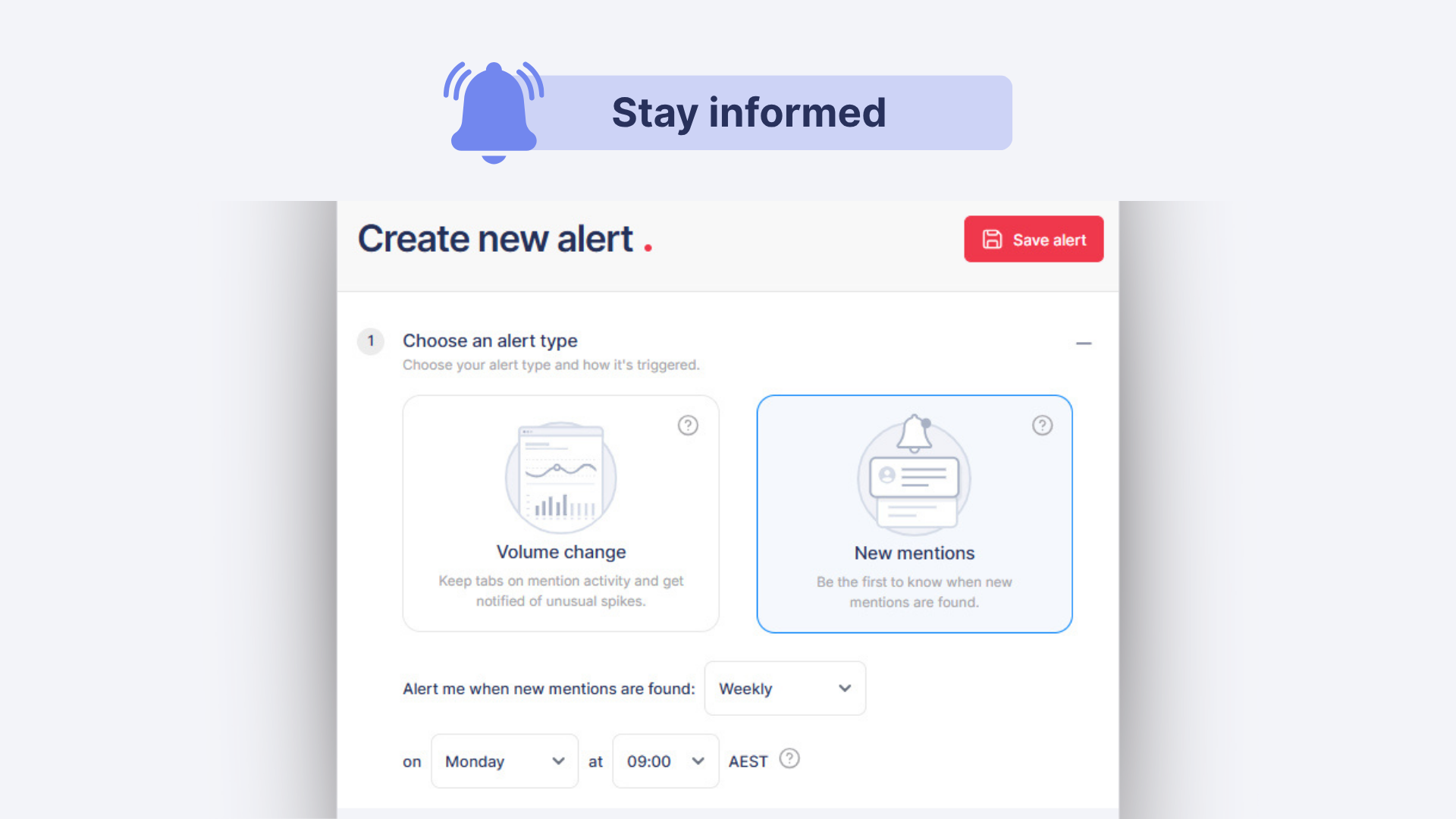
How to create an alert
Step 1: Choose an alert type
Alerts can be configured in two ways.
New mentions
Receive notifications when new mentions matching your search criteria are identified.
Choose how frequently you would like to be notified:
- As it happens
- Daily
- Weekly
For daily and weekly alerts, you can select the specific time you would like to receive notifications.
Volume change
Receive notifications when the volume of mentions changes significantly.
You can configure alerts to notify you when:
- Mentions exceed or fall below a specified number over a day, week or month.
- Mentions increase by a specified percentage over a day, week or month.
Example 1: Notify me when there are more than 10 negative mentions per day.
Example 2: Notify me when negative mentions increase by 20% week-on-week.
Step 2: Select a search
Choose an existing saved search to monitor.
Only one search can be selected per alert, allowing you to track a specific topic, brand, organisation or issue.
Step 3: Refine your alert (optional)
Use filters to make your alerts more targeted and relevant.
Available filters include:
- Sentiment – Positive, neutral or negative mentions.
- Media Type – Social, print, online or broadcast.
- Outlet – Specific media outlets.
- Author – Particular journalists or authors.
- Country – Coverage from Australia or New Zealand
Step 4: Give your alert a name
Enter a unique name to help identify and manage your alerts. The name of the alert will appear in the email subject line and in the body of the email.
Step 5: Choose your recipients
Enter the email addresses of the people who should receive the alert.
Multiple recipients can be added by entering email addresses individually or separating them with commas.
Note: If an alert is based on a private search, only the owner of that search can receive the alert.
Alert emails
When an alert is triggered, recipients receive an email containing:
- A summary of the alert period
- The total number of mentions matching the alert criteria
- The 10 most recent mentions
To explore additional coverage, recipients can access the Saved Searches section on the platform to see the full results.
Managing alerts
All saved alerts are available from the Alerts section in the left-hand navigation menu.
Available actions include:
- Edit – Reopen the alert builder with all settings pre-populated.
- Copy – Create a duplicate alert named Copy of [alert name].
- Delete – Permanently remove the alert.
- Pin – Keep important alerts at the top of the list.
You can also bulk select alerts to delete multiple alerts at once.
When to use alerts
Alerts are particularly useful for:
- Crisis and issues management – Set up near-real-time alerts for negative sentiment to identify potential issues early.
- Campaign monitoring – Track coverage as it happens during a product launch, event or announcement.
- Competitor monitoring – Stay informed about media coverage involving competitors, partners or industry stakeholders.
- Relationship management – Monitor articles written by key journalists or published in priority outlets.
- Sharing positive coverage – Highlight favourable media coverage and campaign successes with internal stakeholders.
Best practices
- Use as it happens alerts for highly time-sensitive topics.
- Choose daily or weekly alerts for ongoing monitoring to reduce inbox volume.
- Filter alerts by sentiment to prioritise negative coverage and identify emerging issues sooner.
- Use media type or outlet filters to make alerts more targeted.
- Review alerts regularly and refine them as your monitoring objectives evolve.